
AI DocBuilder: Building fillable forms from existing PDFs
Beta feature: AI DocBuilder is currently in beta. Results may vary depending on the complexity and formatting of your uploaded PDF. We recommend reviewing all imported questions and scores before using them with patients.
Introduction to AI DocBuilder
AI DocBuilder uses artificial intelligence to read your existing PDF documents and rebuild them as fully fillable digital assets inside Embodia, ready to use without any manual recreation.
Whether you're uploading a questionnaire, an intake form, or a charting template, the process is the same: upload your PDF, and Embodia builds the digital version for you.
Important: AI DocBuilder is designed to work with blank form templates, not completed forms. Do not upload PDFs that contain patient information, responses, or any other personal health data. Only upload blank, unfilled documents that you want to recreate as a digital template inside Embodia.
AI DocBuilder currently supports two document types:
- Questionnaires: upload any PDF intake form, outcome measure, or custom assessment and Embodia builds it as a fillable digital questionnaire, ready to assign to patients
- Chart items: upload a PDF charting item and Embodia builds the chart structure, ready to use in patient records
AI DocBuilder is available on Tier 3 Practice Management memberships. Your first 50 pages are included at no cost. After that, additional pages are processed at $0.10 per page.
Enabling AI DocBuilder for your account
The actions described in this section require a Manager permission on your clinic.
To enable AI DocBuilder for your clinic, go to My settings > Consult resources > AI DocBuilder.
Click on the Enable AI DocBuilder button to enable it for your account.
Using AI DocBuilder to create questionnaires
Start by creating a blank questionnaire under the clinic account. On the questionnaire page, click on the link in the AI DocBuilder notice.

In the popup form, select the PDF file that you wish to use and then click Submit to submit it to AI DocBuilder. Upload a blank PDF template only. Do not upload completed or patient-specific forms.
Once the questionnaire is built, review it carefully and make any edits as you normally would in the questionnaire editor.
Tips for using AI DocBuilder to create questionnaires
Patient properties are mapped automatically.
If a question in your PDF has the same name as a patient property on your account, AI DocBuilder will generate it as a patient property rather than a standalone question. This keeps your data consistent across patient records. If you are new to Embodia, we recommend first setting up your Patient properties to make the best use of the AI DocBuilder and to save yourself from adding them to your ai-generated forms manually afterwards. Learn more in the guide, Using patient properties.Scoring is carried over when present.
If your questionnaire has a scoring system, AI DocBuilder will attempt to assign scores to answer options automatically. Review all scores after import, especially for validated outcome measures where scoring accuracy is clinically important.- Questionnaires with subscales are automatically set up.
If your questionnaire has named subdomains or component scores (for example, separate scores for pain, function, and quality of life), AI DocBuilder will attempt to set these up automatically. Review the subscale structure after import to confirm it matches the published scoring guide. - Review and rate AI DocBuilder's work.
As with any AI tool, always review AI's output before using it clinically.
Using AI DocBuilder to create chart items
Start by creating a blank chart item under the clinic account. On the chart item page, click on the link in the AI DocBuilder notice.
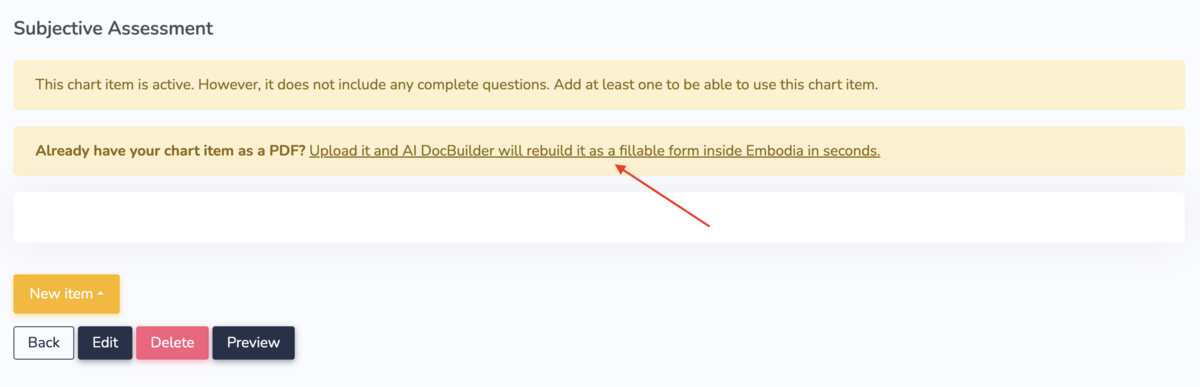
In the popup form, select the PDF file that you wish to use and then click Submit to submit it to AI DocBuilder. Upload a blank PDF template only. Do not upload completed or patient-specific forms.
Once the chart item is built, review it carefully and make any edits as you normally would in the Chart item editor.
General tips for getting the best results
Always review the output before using it clinically
AI DocBuilder is designed to get you most of the way there, but it is not infallible. Before assigning a questionnaire to patients, or using a Chart item in a clinical record, review the output in full. Pay particular attention to question types, scoring, and any conditional logic.
Question types are inferred from content
AI DocBuilder reads the structure and content of your PDF to determine how each question should be built in Embodia. The clearer your PDF, the more accurate the result. AI DocBuilder assigns question types automatically based on how your questions are presented:
- Numeric or slider-style scales (e.g. "Rate your pain from 0 to 10") are built as range questions
- Questions with a single selectable answer from a list are built as single answer questions
- Questions where multiple answers can be selected are built as multiple answer questions
- Open-ended or written response fields are built as free text questions
- Section headers and instructional text are preserved as non-scored instruction items
If a question type does not look right after import, you can edit it directly in Embodia.
Use clear formatting in your source PDF
The AI reads visual and structural cues. For best results:
- Present answer options as a clearly formatted list
- Label or describe any rating scales with their numeric range and endpoints (e.g. "0 = no pain, 10 = worst pain imaginable")
- Use consistent formatting throughout: questions that look different from each other may be interpreted differently
- Avoid handwritten annotations or overlapping text, which can reduce accuracy
Page count affects cost
Each page of your uploaded PDF counts toward your page total. A 3-page questionnaire uses 3 pages. Your first 50 pages are included at no cost. After that, additional pages are $0.10 per page. If you are uploading a large document, it may be worth checking the page count first.
Rate every output
A banner will appear at the top of the questionnaire indicating it was created using AI. You can rate the quality of the output directly from that banner to inform how AI DocBuilder improves over time.
Related Guides
- Questionnaire and chart item question types on Embodia
- Creating a questionnaire from scratch
- Using patient properties
- Creating chart items
- Watch a video walkthrough of AI DocBuilder