
Setting up your packages
The actions described in this lesson require a Manager permission on your clinic.
This guide will go over how to set up your packages if your clinic is planning on providing pre-paid packages to your patients.
Managing your packages
To manage your packages, in the top bar, click Billing > Settings > Packages & memberships:

To add a package, click on New package. In the popup form, enter the following:
- The name of the package: This will be visible to your patients;
- A short description of the package: This will be visible to your patients;
- The price and currency of the package: This is the default value - you can change it before assigning the package to a specific patient;
- The maximum number of payments/visits (optional): represents the maximum number of payments/visits that this package can be used for. Leave blank to only restrict the validity of this package to the dollar amount remaining in the package, otherwise, enter a value greater than or equal to 1;
- The payment method for the package: This is the default value - you can change it before assigning the package to a specific patient;
- The tax rate for the package: This is the default value - you can change it before assigning the package to a specific patient;
- The expiry date of the package (optional): This is the default value - you can change it before assigning the package to a specific patient;
- Whether the package, once assigned to a patient, can be used by any practitioner;
- Whether to automatically try to deduct payment from this package when a new patient invoice is created and what discount to provide: This is the default value - you can change it before assigning the package to a specific patient;
- Whether the package can be bought directly by the patient from the patient portal: This option will only show up if the payment method selected accepts card payments;
- Whether the package should be active (you can only bill for active packages).
Here's what the New package popup form looks like:

How should you price your packages?
The price of the package is determined by 3 factors:
- The original price of the service(s) covered under the package;
- The number of visits covered under the package;
- The discount (if any) you want to provide the patient for purchasing the package.
Let's look at an example. Say you want to create a package that covers 1 Assessment and 5 Follow-up visits and want to offer a 10% discount if the patient buys the package. You've already set up the following services (more info here):
- The Assessment service is priced at $200;
- The Follow-up service is priced at $100.
Important: You do NOT need to create a dedicated service for your package.
Based on the information above, the price of the package should be:
($200/Assessment x 1 Assessment + $100/Follow up x 5 Follow up) x (100 - 10 discount)% = $630
Allowing patients to purchase packages from the patient portal
By default, patients cannot buy a package. You need to assign it to them and afterward collect payment.
Embodia gives you the option to make your packages available for purchase directly from the patient portal if the following criteria are met:
- The package needs to have a payment method that can accept credit card payments (more info here); and
- You need to check the "Allow patients to purchase this package directly from the patient portal" checkbox.
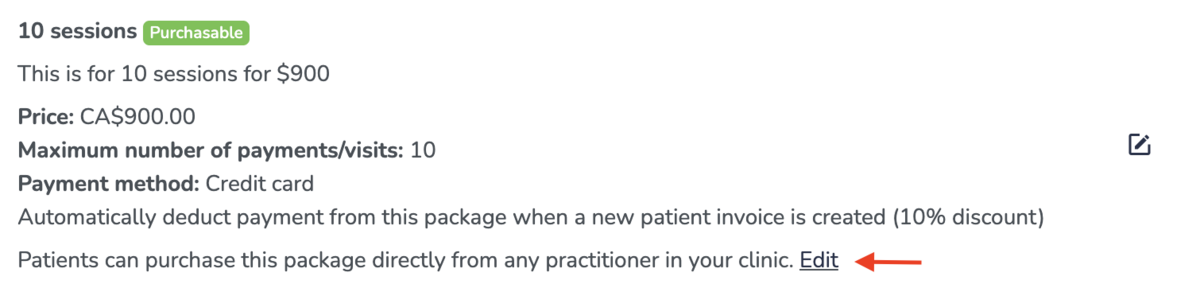
If you allow patients to purchase this package directly from the patient portal, by default, patients can purchase this package directly from any practitioner in your clinic. You can override this by clicking on the "Edit" link, under the desired package.
Please note that Embodia relies on the "Who can book" setting to check who can purchase a clinic package:
- If your "Who can book" setting is set to "No one", then your packages will be displayed in the patient portal, but the patient will not be able to purchase them (Embodia will show them a notice to contact your clinic);
- If your "Who can book" setting is set to "Only existing patients", then your packages will be displayed in the patient portal, but only your existing patients will be able to purchase them;
- If your "Who can book" setting is set to "New and existing patients", then any patient will be able to purchase your package. If they do not currently have an account, they will be asked to create one.
If you would like to learn about the patient experience buying packages, please refer to this guide.